
Download ChatGPT Outlook Plugin – AI‑powered Email Assistant for Outlook
Overview
The ChatGPT Outlook Plugin brings OpenAI’s cutting‑edge language model directly into Microsoft Outlook, turning your inbox into an intelligent workspace. Designed for professionals who juggle dozens of messages daily, this add‑in lets you generate polished replies, summarize long threads, and highlight critical points without ever leaving the Outlook interface. By leveraging custom prompts, the plugin can be fine‑tuned for specific business scenarios—whether you need a concise executive summary, a friendly customer‑service reply, or a formal contract negotiation draft.
The tool also features selective text processing, allowing you to target a single paragraph or the entire email body, and it can automatically adjust the importance flag of outgoing messages based on the AI‑generated content. For teams, administrators can deploy a branded version of the plugin, ensuring consistent communication standards across the organization. In short, the ChatGPT Outlook Plugin is a secure, time‑saving companion that transforms raw email data into actionable, well‑crafted communication with a few clicks.
Key Features & Benefits
- Custom Prompt Library: Create, import, and manage prompts tailored to your industry, role, or personal style.
- Selective Text Processing: Choose to process the whole email or highlight specific sections for targeted AI assistance.
- Dual‑View Output: View AI‑generated suggestions side‑by‑side with the original message or replace the content instantly.
- Automatic Importance Tagging: The plugin can set the email’s priority (High, Normal, Low) based on the tone and urgency of the generated reply.
- Multiple Configuration Profiles: Switch between different prompt sets for sales, support, HR, or project management with a single click.
- Enterprise Customization: Organizations can brand the add‑in, enforce compliance policies, and centrally manage prompt libraries.
- Secure Data Handling: All communications with OpenAI’s API are encrypted, and no email content is stored on external servers beyond the processing request.
- Cross‑Platform Support: Works seamlessly on Outlook for Windows, macOS, and the web version, ensuring consistent AI assistance wherever you work.
These features collectively reduce the time spent drafting responses, minimize the risk of miscommunication, and help maintain a professional tone across all correspondence. By automating routine email tasks, the plugin frees up mental bandwidth for strategic work, ultimately boosting productivity and enhancing the quality of client interactions. Moreover, the ability to tailor prompts means you can align the AI’s output with your brand voice, ensuring every message reflects your organization’s values.
Installation & Usage Instructions
Step‑by‑Step Installation
- Open Outlook and navigate to the Home ribbon.
- Click Get Add‑ins (or Store in older versions).
- Search for “ChatGPT Outlook Plugin” and select Add.
- Accept the permissions dialog—this grants the add‑in access to read and write email content securely.
- After installation, a new ChatGPT button appears on the ribbon.
First‑Run Configuration
Upon clicking the button for the first time, you’ll be prompted to enter your OpenAI API key. The plugin stores this key locally and encrypts it using Windows Credential Manager (or macOS Keychain), ensuring that your credentials never leave your device. Next, you can import existing prompt files (JSON or plain text) or use the built‑in library of common business prompts. Each prompt can be labeled (e.g., “Sales Follow‑up”, “Technical Support”) and assigned an icon for quick access.
Generating a Response
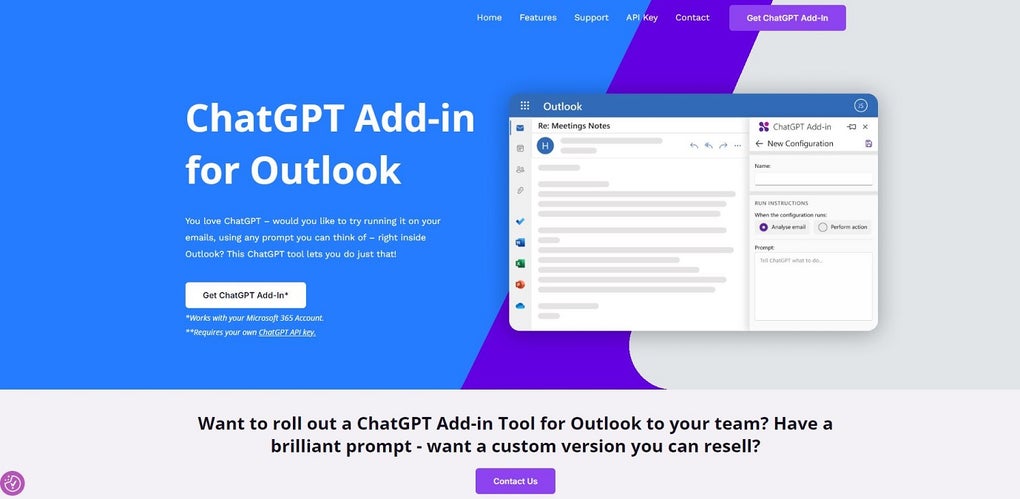
To generate a reply, open any email and click the ChatGPT button. Choose a prompt from the dropdown, optionally highlight a paragraph you want the AI to focus on, and press Generate. The AI will process the request within seconds and display the output in a pane on the right. You can edit the suggestion, copy it to the clipboard, or click Replace Body to insert it directly into your reply window. If you enable “Show Original & AI Side‑by‑Side,” both versions appear simultaneously, allowing you to compare and choose the best phrasing.
Advanced Tips
- Use Keyboard Shortcuts (Ctrl+Alt+G) to open the plugin without leaving the keyboard.
- Save a generated response as a Template for future reuse.
- Enable Auto‑Priority in settings to let the plugin set email importance based on detected urgency.
- For enterprise users, configure Team Prompts via the admin console to ensure consistent messaging across departments.
The overall workflow is designed to be intuitive: once installed, the plugin becomes a natural extension of Outlook, requiring only a few clicks to harness the power of ChatGPT for everyday email tasks.
Compatibility, Pros & Cons
The ChatGPT Outlook Plugin is compatible with the following environments:
- Outlook 2016, 2019, and Microsoft 365 (Windows 10/11, 64‑bit)
- Outlook for macOS (Version 16.0 and later, macOS 10.15 Catalina or newer)
- Outlook on the web (Outlook.com and Office 365 Exchange Online)
- Office Mobile (iOS & Android) – limited to generating suggestions via a companion web view.
Pros
- Time Savings: Drafts emails in seconds, cutting down response time dramatically.
- Customizable Prompts: Tailor AI behavior to match specific business contexts.
- Secure Architecture: Encrypted API keys and no persistent storage of email content.
- Cross‑Platform Consistency: Same experience on Windows, macOS, and web Outlook.
- Enterprise Ready: Centralized management, branding, and compliance controls.
- Automatic Priority Tagging: Helps inbox triage by marking important replies.
Cons
- Requires an active OpenAI API subscription for full functionality; free tier has usage limits.
- Initial setup (API key entry) may be confusing for non‑technical users.
- Performance depends on internet connectivity; slow connections can delay response generation.
- Limited offline capability—cannot generate suggestions without an active connection.
- Advanced customization (team prompts) is only available in the paid enterprise plan.
Frequently Asked Questions
Is the ChatGPT Outlook Plugin free to use?
The plugin itself is free to download from the Office Store, but it requires an OpenAI API key. OpenAI offers a limited free tier, after which usage is billed per token. Organizations can also purchase a dedicated subscription for higher volume.
How does the plugin ensure my email data is secure?
All communications with the OpenAI service are encrypted via HTTPS. The API key is stored locally in the OS’s credential manager, and the plugin never retains email content after the request is processed. No data is logged on external servers beyond the brief transaction needed for AI generation.
Can I use the plugin on Outlook mobile apps?
A limited version is available on Outlook for iOS and Android through a web‑view interface. Full functionality—such as custom prompt management—is currently only supported on desktop and web Outlook.
What happens if I highlight only part of an email before generating a response?
The plugin will focus the AI’s attention on the selected text, using it as the primary context while still considering the surrounding email metadata. This is ideal for replying to specific paragraphs without re‑summarizing the entire thread.
Can I create a custom version of the plugin for my company?
Yes. The enterprise plan includes a white‑label option that lets administrators brand the add‑in, enforce custom prompt libraries, and integrate with internal compliance tools. Contact the vendor’s sales team for a tailored quote.
Conclusion & Call to Action
The ChatGPT Outlook Plugin stands out as a powerful, secure, and highly adaptable AI companion for anyone who spends a significant portion of the day managing email. Its blend of custom prompts, selective processing, and automatic importance tagging delivers tangible productivity gains while maintaining control over brand voice and data privacy. Although a modest learning curve exists for API key setup and the free tier’s usage limits, the overall value—especially for knowledge workers and customer‑facing teams—far outweighs these minor hurdles. If you’re looking to accelerate email handling, reduce writer’s block, and ensure consistent communication standards across your organization, this add‑in is worth a try.
Ready to transform your inbox? Download the ChatGPT Outlook Plugin now, insert your OpenAI API key, and start crafting smarter, faster emails today.



.png)



